How it works
Here's how creating a sheet works: pick a starting point, build, review, publish.
Getting started
Create a sheet
Start from a template or a blank sheet, build it, review it, then publish.
- Open New sheet from your dashboard — you'll be asked to sign in first if you aren't already.
- Pick a template — parent-teacher conferences, volunteer shifts, a potluck bring-list, office hours, field-trip chaperones, or a group poll — or start from blank.
- Build your sheet: everything is grouped and fully editable — dates, times, your sheet's time zone, and how many people each slot needs on scheduled sheets, or the items or options on a bring-list or poll.
- Answer the student-privacy question yourself when it's asked — it is never filled in for you.
- Review the sheet and how it will look to the public, then publish and share the link.
Features
Add sign-up questions
Ask every participant for what you need when they sign up.
- Open your sheet's page and go to the Edit sheet tab (Editar hoja).
- Under Sign-up questions, add up to 5 questions — short or long answer, and mark any as required. Add them before anyone signs up.
- Questions lock as soon as someone signs up — even if that sign-up is later canceled — so their answers stay tied to the questions.
Reminders and messages
Automated reminders, thank-yous, and custom notes for a published sheet.
- After you publish, open the sheet's page and go to the Workflows tab (Flujos de trabajo).
- Edit the default reminder and thank-you messages and their timing, or add your own rules — choose the trigger, the recipient, and the channel.
- Keep the messages general: use the variable placeholders instead of typing anything private about specific people.
Co-organizers
Share management.
- Open a sheet's detail.
- Add a co-organizer by email (owner only).

Team meeting types
Share bookings across a team of hosts.
- On a time-based sheet's edit page, pick a team mode: round-robin, collective, or group.
- Add your hosts by name + email — they don't need an account.
- Round-robin auto-assigns each booking to one free host; collective books the whole team at once; group is one shared session many people join.
- Bookers don't pick a host — the assigned host shows on their confirmation, and each host gets an email.
Waitlist for team bookings
Keep collecting interest after every host is booked.
- On a team sheet, turn on the waitlist for the sheet.
- When every host is booked for a slot, families can join the waitlist instead.
- When someone frees up, convert a waitlisted family — they get a confirmation email.
Seat from the waitlist with any host
Fit one more in when no host is free.
- Open the waitlist on a team sheet's detail.
- Convert a family and pick any host from your directory.
- You can seat them even if that host is already booked — the double-booking is allowed and clearly flagged.
Co-presenters
Bring extra staff along without taking a seat.
- Add co-presenters to the whole sheet, or to a single booking.
- They join the meeting without using up a slot.
- Families see the co-presenters' names on their confirmation.
Share a document with everyone who books
One link that reaches every participant.
- On the sheet's edit page, add one document link.
- Everyone who books sees it on their confirmation page and email.
- Never link a document about a specific student — use the per-claim send instead.
Add a participant yourself
Book walk-ups, phone, or email sign-ups.
- Open the sheet detail and add a participant to a slot.
- Enter their name and email yourself.
- They get the same confirmation email as a public booking, and behave like any other booking afterward.
Roster CSV
Export who signed up.
- Open the sheet detail.
- Download CSV — includes intake answers.

Add to calendar
.ics + Google deep-link.
- On a confirmation, tap Add to calendar.
- Download the .ics or use the Google-Calendar link.

Dark mode
Easy on the eyes.
- Use the ☾/☀ toggle in the header.
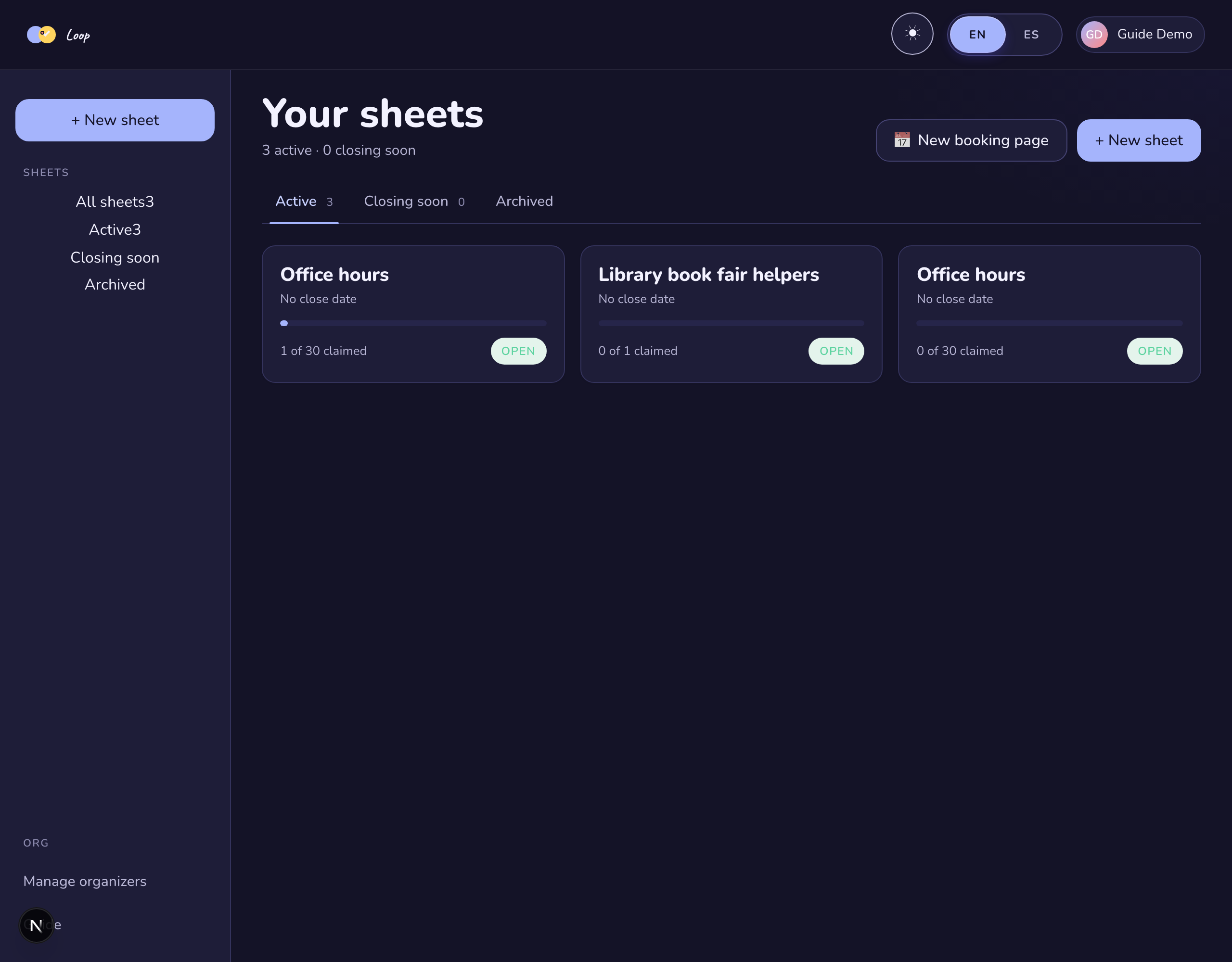
Describe it — let AI draft your sheet
On the new create screen, you can type a plain-language description and get a draft sheet to review.
- From "New sheet", type a description instead of picking a template — for example a date, time, and how many people you need.
- Before you submit: never include private or student details — no names, notes, or anything about specific students. Only general sign-up information belongs in the description.
- After submitting, review the generated draft — title, description, time zone, and slot count. Apply it only if you're satisfied; it opens in the builder where every field stays fully editable.
- Publishing still requires the student-privacy question, answered by you — the draft never answers it for you.